> For the complete documentation index, see [llms.txt](https://docs.tessell.com/tessell/llms.txt). Markdown versions of documentation pages are available by appending `.md` to page URLs; this page is available as [Markdown](https://docs.tessell.com/tessell/app-families/maintenance-center.md).
# Maintenance Center
The Maintenance Center is a centralized application where infrastructure admins and data owners manage maintenance schedules and OS patching for database services and servers.
***
## Prerequisites
* Ensure that you have created your database service in the Provisioning application under DB Services app family.
***
## Core concepts
### Maintenance Schedule and Maintenance Window
A **Maintenance Schedule** is a recurring schedule you configure on a database service or server. It defines when Maintenance Windows run, including the cadence (weekly, monthly, or quarterly), start day and time, and duration.
A **Maintenance Window** is a single execution instance of a Maintenance Schedule.
### Service-level and server-level Maintenance Schedules
The type of Maintenance Schedule available to you depends on the server type:
* **Dedicated servers** — The service-level and server-level Maintenance Windows are the same. Data owners can schedule OS patching and DB updates in this window.
* **Shared servers** — Service-level and server-level Maintenance Schedules are separate. OS patching runs only in server-level Maintenance Windows, which the infrastructure admin manages. Data owners can schedule DB updates within server-level windows from the My Services app.
### Patch severity levels
Tessell assigns a severity level to each certified patch:
* **Critical** — High-severity security vulnerabilities identified by a high CVSS (Common Vulnerability Scoring System) score.
* **Moderate** — Medium-severity updates that are not urgent but warrant attention.
* **Non-critical** — Low-severity updates with no urgency constraint.
### Patch availability
Tessell updates patch availability through a daily job. After Tessell certifies a patch, it can take up to 24 hours before the patch appears in the Maintenance Center.
### Auto OS patching
When you enable Auto OS Patching, Tessell applies the latest certified OS patch automatically in the next recurring Maintenance Window. Auto OS patching doesn't trigger in one-time custom Maintenance Windows — for example, a custom window created for a parameter profile update. Auto OS patching supports minor version upgrades only. Major version upgrades require manual scheduling because they may affect application and database compatibility.
### Automated patch execution
When you or Tessell's automated engine triggers a patch, the following steps run automatically:
1. Tessell takes an auto-generated snapshot immediately before the Maintenance Window starts. The snapshot type depends on the operation — OS patching triggers an OS disk snapshot, and a parameter profile update triggers a data disk snapshot.
2. Tessell applies the certified OS patch to the VM.
3. Tessell validates that the patch was applied successfully and the service is stable.
4. If the patch fails to apply, Tessell automatically rolls back the service using the snapshot. If the patch applies successfully but the service is unstable, recovery is not automatic — you must restore the service manually.
***
## Personas and permissions
The Maintenance Center serves two personas:
* **Infrastructure admin** — Manages servers and OS-level operations.
* **Data owner** — Manages database services and DB-level operations.
The following table shows what each persona can do based on server type:
| Action | Data owner (dedicated) | Data owner (shared) | Account owner / infrastructure admin (dedicated) | Account owner / infrastructure admin (shared) |
| ------------------------------------------- | ---------------------- | ------------------------- | ------------------------------------------------ | --------------------------------------------- |
| Configure a DB service Maintenance Schedule | Yes | Yes | Yes | Yes |
| Configure a server Maintenance Schedule | Not applicable | No | Not applicable | Yes |
| View OS patch availability | Yes | Yes (Upcoming state only) | Yes | Yes |
| Schedule OS patching | Yes | No | Yes | Yes (from server page) |
| Enable or disable Auto OS Patching | Yes | No | Yes | Yes (at server level) |
***
## Supported configurations
The Maintenance Center supports the following:
* OS patching for Single Instance Oracle database services on Linux (RHEL)
* Dedicated servers and shared servers where all database services are Single Instance
* Tessell-managed images
***
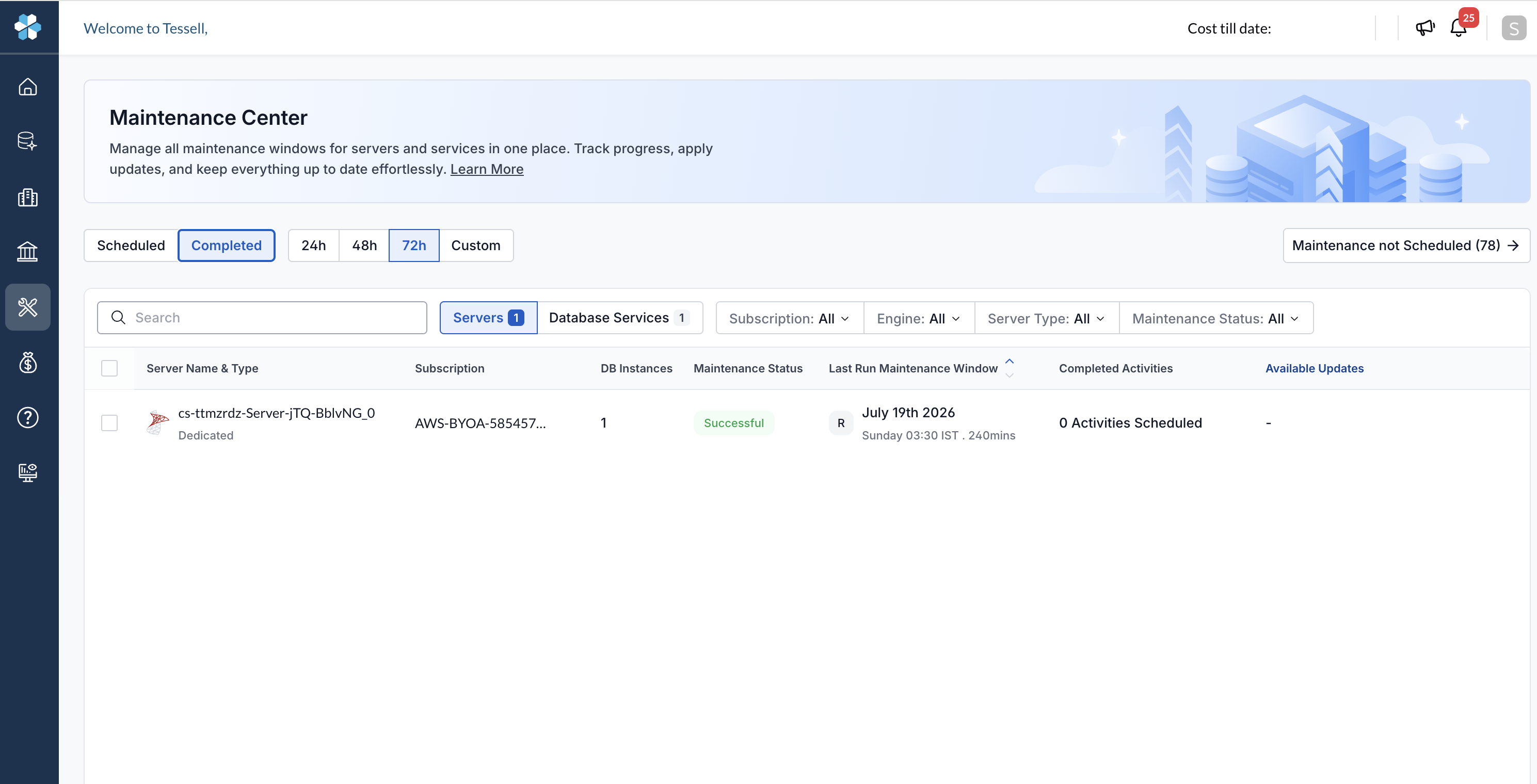
## Explore the Maintenance Center dashboard
On the left navigation bar of the Tessell portal, select **Maintenance Center** to open the dashboard.
Filter the Maintenance Windows by state and time range:
* **Scheduled** — Shows all upcoming scheduled Maintenance Windows.
* **Completed** — Shows Maintenance Windows that have already run.
* **24h**, **48h**, **72h** — Shows scheduled or completed Maintenance Windows from the last 24, 48, or 72 hours respectively.
* **Custom** — Shows scheduled or completed Maintenance Windows for a custom date and time range.
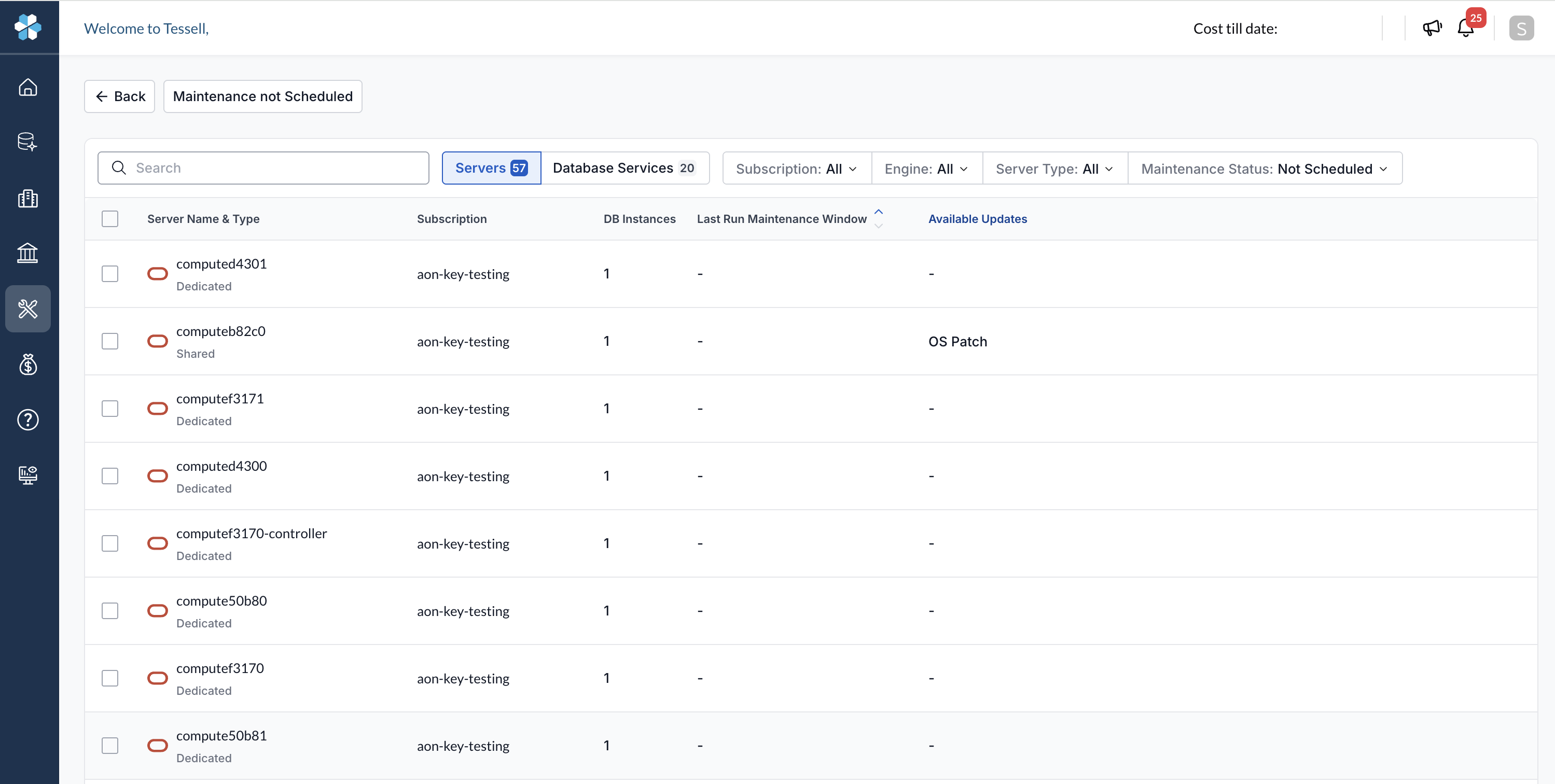
### Maintenance not Scheduled
The **Maintenance not Scheduled** link in the top-right corner shows the count of servers and services without a Maintenance Schedule. Select it to open the Maintenance not Scheduled page.
### Servers and Database Services tabs
Within each view, the **Servers** and **Database Services** tabs show Maintenance Window activity at the server and service level respectively. Each tab shows a count of items in the current view.
Use the following filters to narrow the list:
* **Search** — Search by server or service name.
* **Subscription** — Filter by cloud subscription.
* **Engine** — Filter by database engine.
* **Server Type** — Filter by server type (Dedicated or Shared).
* **Maintenance Status** — Filter by the status of the last Maintenance Window.
If no Maintenance Windows match your selected filters, the dashboard shows a **No maintenance windows match your selected filters** empty state.
The **Servers** tab includes the following columns:
| Column | Description |
| --------------------------- | ----------------------------------------------------------------------------------------------------------------- |
| Server Name & Type | The server name and type (Dedicated or Shared). |
| Subscription | The subscription associated with the server. |
| DB Instances | The number of database instances hosted on the server. |
| Maintenance Status | The status of the last Maintenance Window — for example, **Successful**. |
| Last Run Maintenance Window | The date, time, and duration of the most recent Maintenance Window. An **R** icon indicates a recurring schedule. |
| Completed Activities | The number of activities that ran in the last Maintenance Window. |
| Available Updates | Whether an OS patch is available. |
The **Database Services** tab includes the following columns:
| Column | Description |
| --------------------------- | ----------------------------------------------------------------------------------------------------------------- |
| Service Name | The name of the database service. |
| Server Name & Type | The server hosting the service and its type. |
| Subscription | The subscription associated with the service. |
| Maintenance Status | The status of the last Maintenance Window. |
| Last Run Maintenance Window | The date, time, and duration of the most recent Maintenance Window. An **R** icon indicates a recurring schedule. |
| Completed Activities | The number of activities that ran in the last Maintenance Window. |
| Available Updates | Whether an OS patch is available. |
Figure 1 - Maintenance Center dashboard
***
## Maintenance not Scheduled page
The Maintenance not Scheduled page lists all servers and services that don't have a Maintenance Schedule configured. It uses the same **Servers** and **Database Services** tabs as the dashboard, pre-filtered to unscheduled items. The columns are the same as in the dashboard, except that **Maintenance Status** and **Completed Activities** are not shown because these items have no Maintenance Window history.
To schedule Maintenance Windows for multiple items at once, see [Schedule Maintenance Windows in bulk](#schedule-maintenance-windows-in-bulk).
Figure 2 - Maintenance not Scheduled page
***
## Server detail page
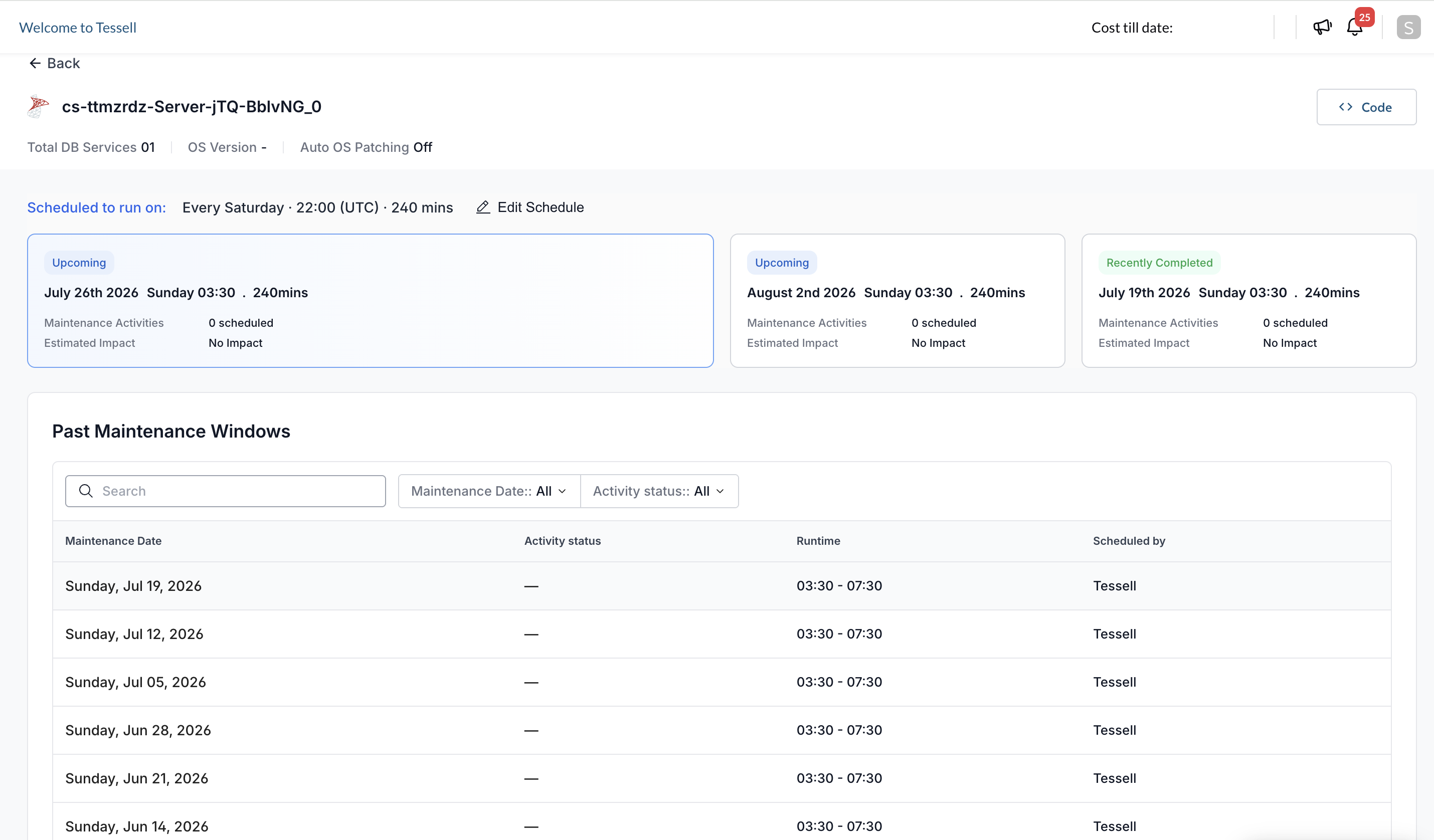
Select a server from the **Servers** tab to open its detail page.
The top of the page shows the following:
* **Server name** — The name of the server. A **Shared** badge appears for shared servers.
* **Total DB Services** — The number of database services hosted on the server.
* **OS Version** — The current operating system version.
* **Auto OS Patching** — Whether automatic OS patching is on or off.
A **Code** button appears in the top-right corner. Use the Code button to get the Server details.
### Available Updates
If an OS patch is available, an **Available Updates** banner appears showing the patch type and severity (for example, **Moderate**).
Select **Schedule Updates** to schedule or trigger the patch. For the full procedure, see [Schedule an OS patch](#schedule-an-os-patch).
### Maintenance Schedule and history
When no Maintenance Schedule is configured, the page shows a **No Maintenance Windows Scheduled** empty state. Select **+ Schedule Maintenance Window** to configure one. For the full procedure, see [Configure a Maintenance Schedule](#configure-a-maintenance-schedule).
When a Maintenance Schedule is configured, the page shows the following:
**Scheduled to run on** — The active schedule in the format **Every \[day] · \[time] (UTC) · \[duration] mins** — for example, **Every Saturday · 22:00 (UTC) · 240 mins**. Select the pencil icon to edit the schedule. For the full procedure, see [Edit a Maintenance Schedule](#edit-a-maintenance-schedule).
**Upcoming and recently completed Maintenance Windows** — The next two upcoming Maintenance Windows and the most recently completed Maintenance Window are displayed below the schedule. Each entry shows the status badge, date, time, duration, number of scheduled **Maintenance Activities**, and **Estimated Impact**. Status badges include **Upcoming** (blue) and **Recently Completed** (green).
**Past Maintenance Windows** — A history of Maintenance Windows that have already run. You can filter by date or activity status using the **Maintenance Date** and **Activity status** dropdowns, or search by date using the search bar.
| Column | Description |
| ---------------- | -------------------------------------------------------------------------- |
| Maintenance Date | The date the Maintenance Window ran. |
| Activity status | The status of the activities. Shows **—** if no activities were scheduled. |
| Runtime | The start and end time of the window — for example, **03:30 - 07:30**. |
| Scheduled by | Whether the window was scheduled by you or by Tessell. |
Figure 3 - Server detail page
***
## Service detail page
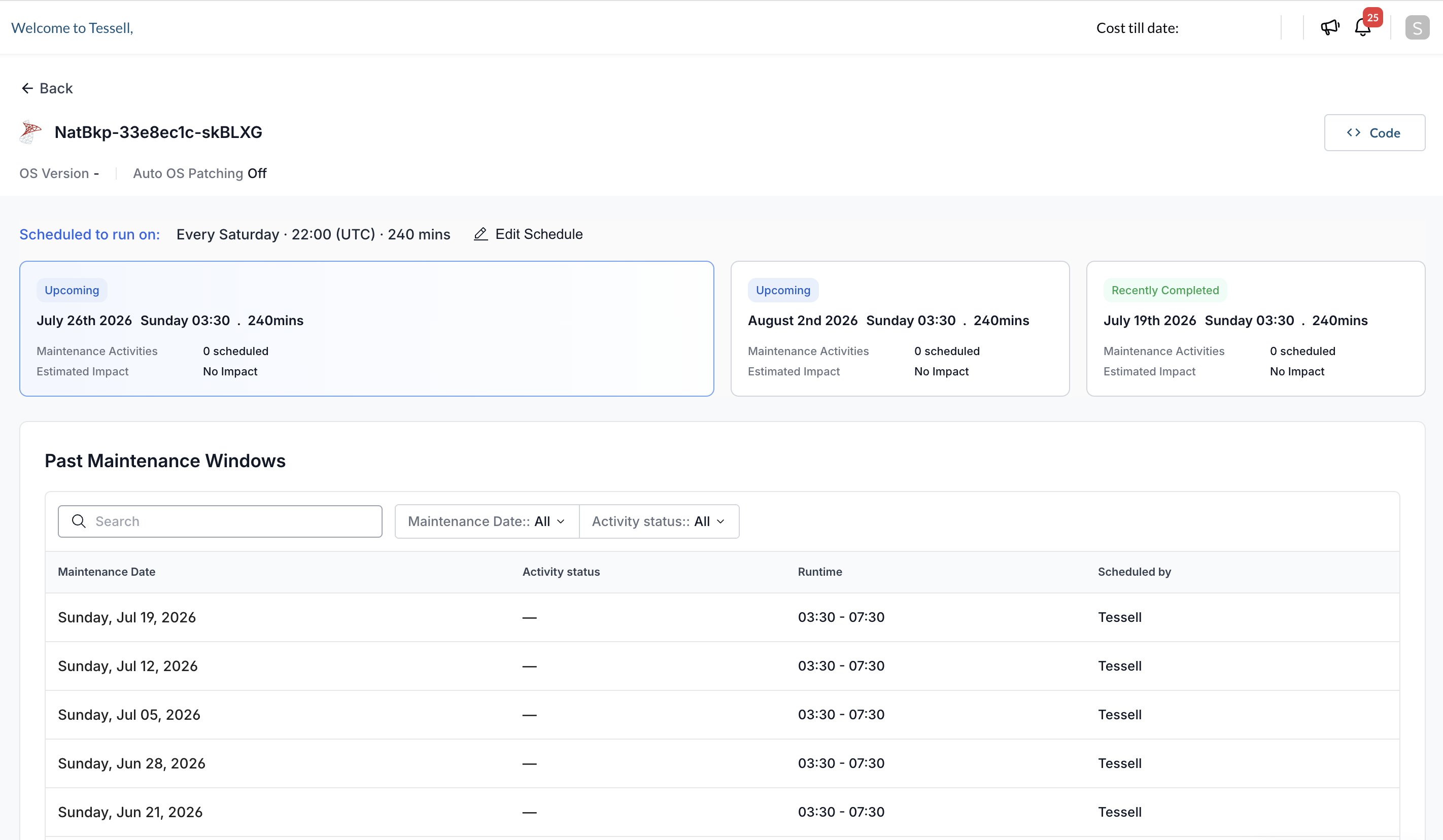
Select a service from the **Database Services** tab to open its detail page.
The top of the page shows the following:
* **Service name** — The name of the database service. A **Shared** badge appears for services on a shared server.
* **OS Version** — The current operating system version.
* **Auto OS Patching** — Whether automatic OS patching is on or off.
A **Code** button appears in the top-right corner. Use the Code button to get the Service details.
The Available Updates banner, Maintenance Schedule display, Maintenance Windows, and Past Maintenance Windows table work the same way as on the server detail page. For details, see [Server detail page](#server-detail-page).
The following differences apply for shared services:
* For data owners, the **Schedule Updates** button in the Available Updates banner is disabled. Data owners on shared services can see OS patch availability but can't trigger it — OS patching for shared services is managed at the server level by the infrastructure admin or account owner.
* The **Schedule Maintenance Window** panel doesn't include **Enable Auto OS Patching (minor version)**, **Pre-script**, or **Post-script**. These are server-level settings managed by the infrastructure admin.
Figure 4 - Service detail page
***
## Configure a Maintenance Schedule
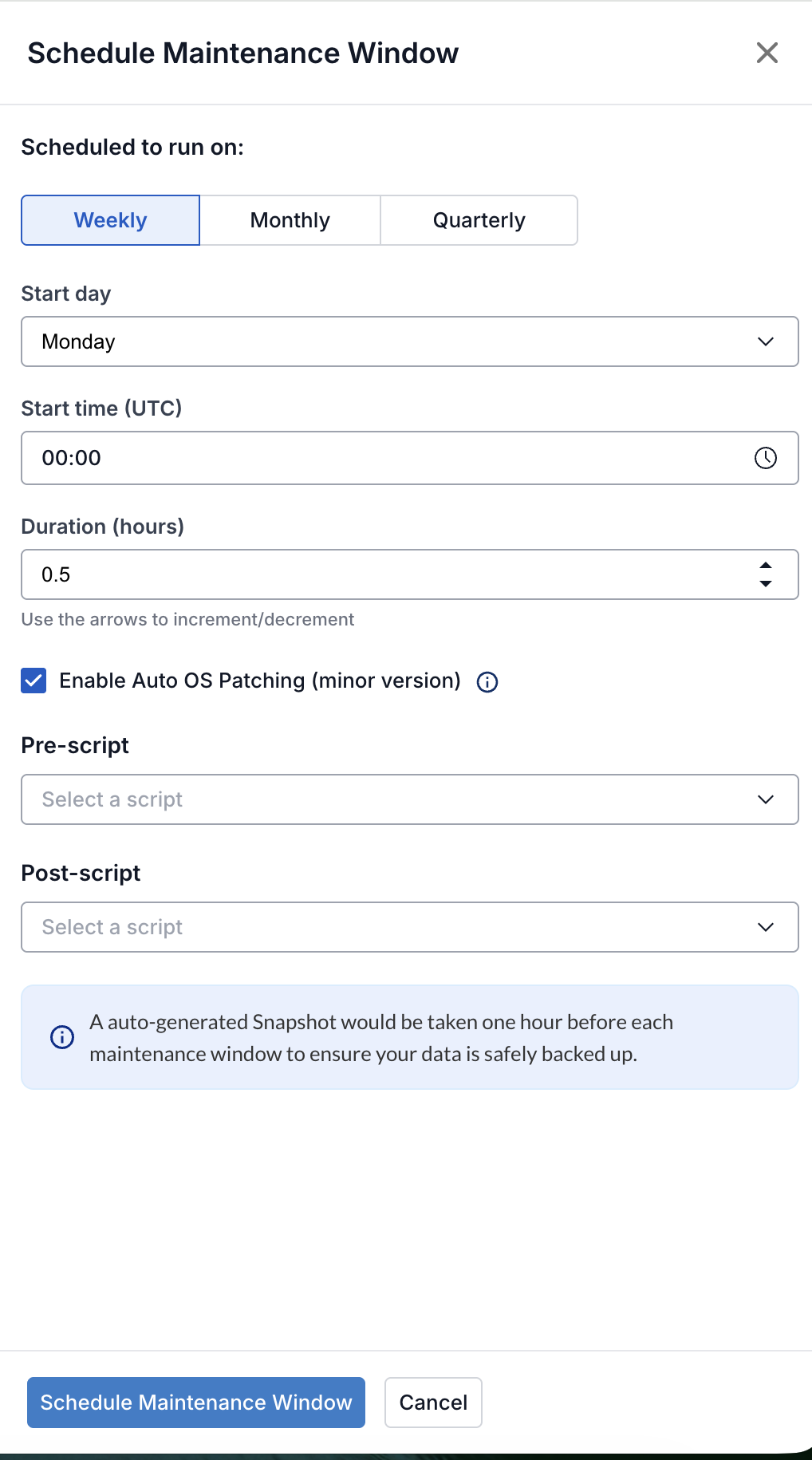
1. On the server or service detail page, select **+ Schedule Maintenance Window**.\
The **Schedule Maintenance Window** panel opens on the right.
2. Under **Scheduled to run on**, select a cadence tab: **Weekly**, **Monthly**, or **Quarterly**.
3. Configure the following fields:
| Field | Description |
| ---------------- | -------------------------------------------------------------------------- |
| Start day | The day the window runs. |
| Start time (UTC) | The start time in UTC, in HH:mm format. |
| Duration (hours) | The duration in hours. Use the arrows to increment or decrement the value. |
4. Configure the following additional settings:
* To apply the latest certified minor OS patch version automatically in the next recurring Maintenance Window, select **Enable Auto OS Patching (minor version)**.
* To run a script before patching, select one from **Pre-script**.
* To run a script after patching, select one from **Post-script**.
> **Note** Tessell takes an auto-generated snapshot immediately before each Maintenance Window starts to back up your data.
5. Select **Schedule Maintenance Window**.
Figure 5 - Schedule Maintenance Window panel
***
## Edit a Maintenance Schedule
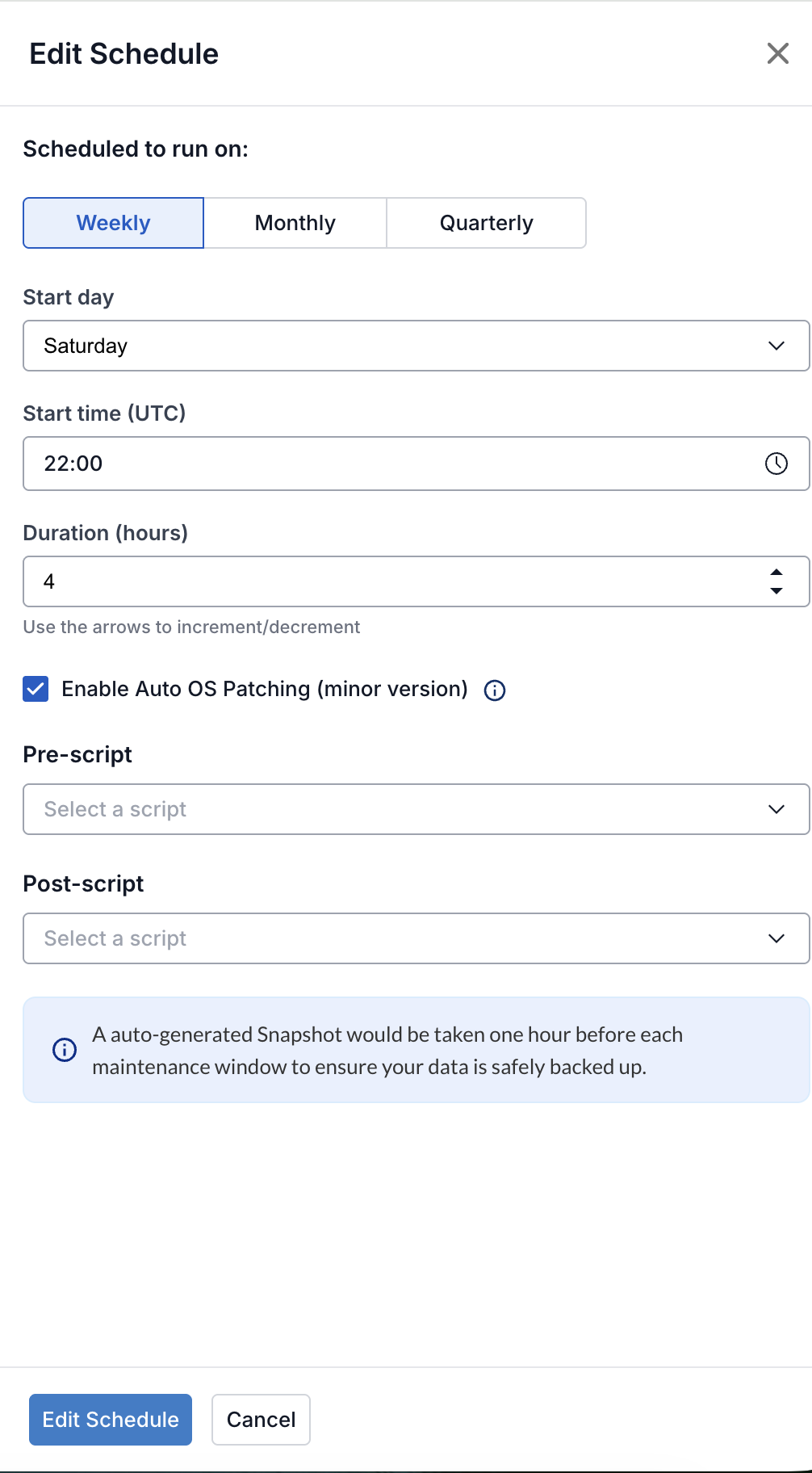
1. On the server or service detail page, select the pencil icon next to the **Scheduled to run on** label.\
The **Edit Schedule** panel opens, pre-populated with the current schedule values.
2. Update the fields as needed. The available fields are the same as in [Configure a Maintenance Schedule](#configure-a-maintenance-schedule).
3. Select **Edit Schedule**.
Figure 6 - Edit Schedule panel
***
## Schedule an OS patch
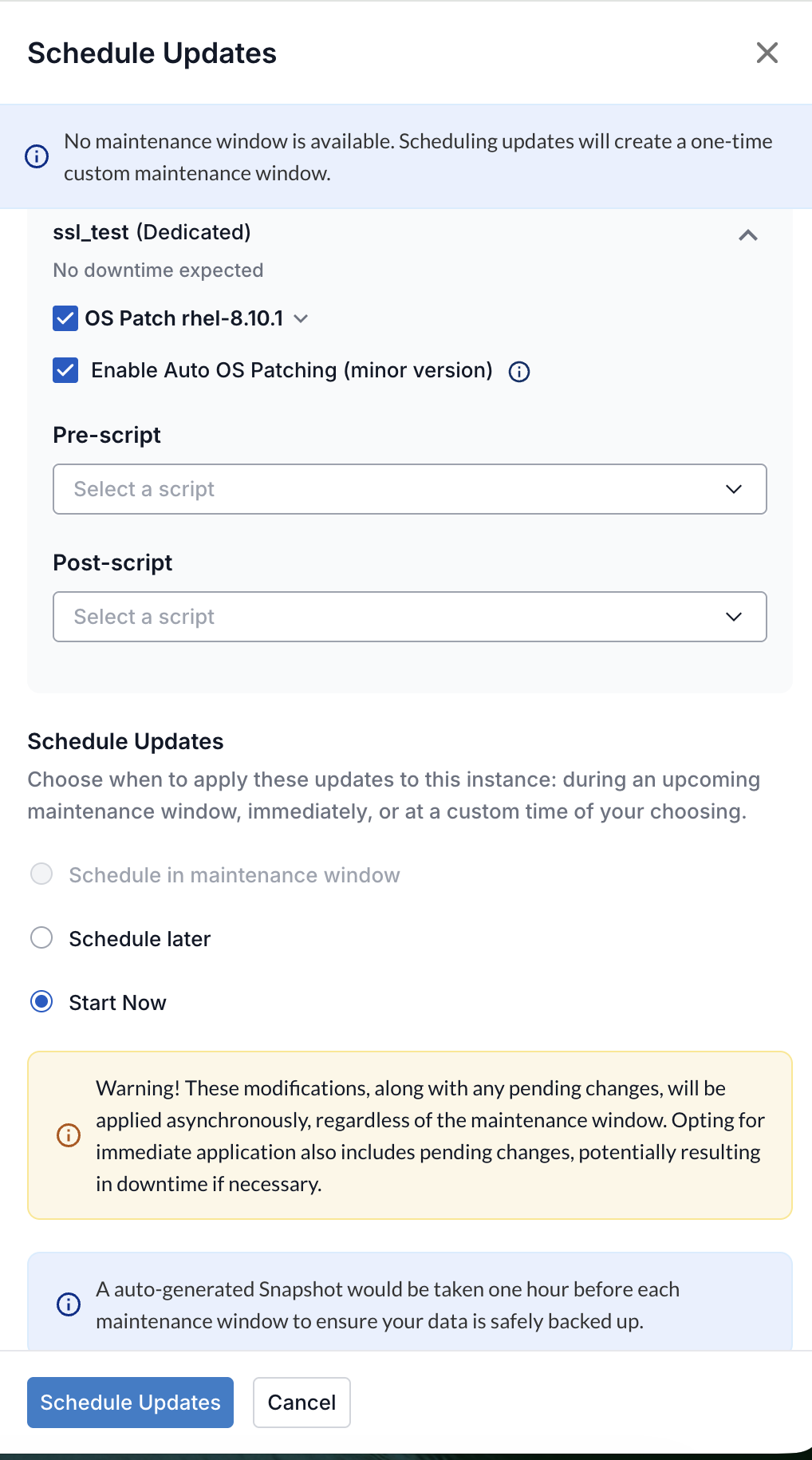
1. In the **Available Updates** banner, select **Schedule Updates**.\
The **Schedule Updates** panel opens on the right, showing the server or service name, server type, and expected downtime impact.
> **Note** If no Maintenance Schedule is configured, an info banner in the panel states that scheduling updates will create a one-time custom Maintenance Window. The **Schedule in maintenance window** option is disabled until you configure a Maintenance Schedule. Select **+ Schedule Maintenance Window** on the detail page to set one up first.
2. In the **OS Patch** dropdown, select the OS patch version to apply. The latest available version is pre-selected.
3. To apply the latest certified minor OS patch version automatically in the next recurring Maintenance Window, select **Enable Auto OS Patching (minor version)**.
4. To run a script before the patch, select one from **Pre-script**.
5. To run a script after the patch, select one from **Post-script**.
6. Under **Schedule Updates**, select when to apply the update:
* **Schedule in maintenance window** — Applies the patch in the next Maintenance Window. Disabled if no Maintenance Schedule is configured.
* **Schedule later** — Creates a one-time custom Maintenance Window at a time you choose. Enter the date in **DD/MM/YYYY** format and the time in **HH:mm** format. The **Schedule Updates** button activates after you fill in both fields.
* **Start Now** — Triggers the patch immediately. The **Schedule Updates** button activates as soon as you select this option.
> **Warning** Selecting **Start Now** applies the patch and any pending changes immediately and asynchronously, outside of the Maintenance Window. This may cause downtime.
> **Note** Tessell takes an auto-generated snapshot immediately before each Maintenance Window starts to back up your data.
7. Select **Schedule Updates**.
Figure 7 - Schedule Updates panel
***
## Schedule Maintenance Windows in bulk
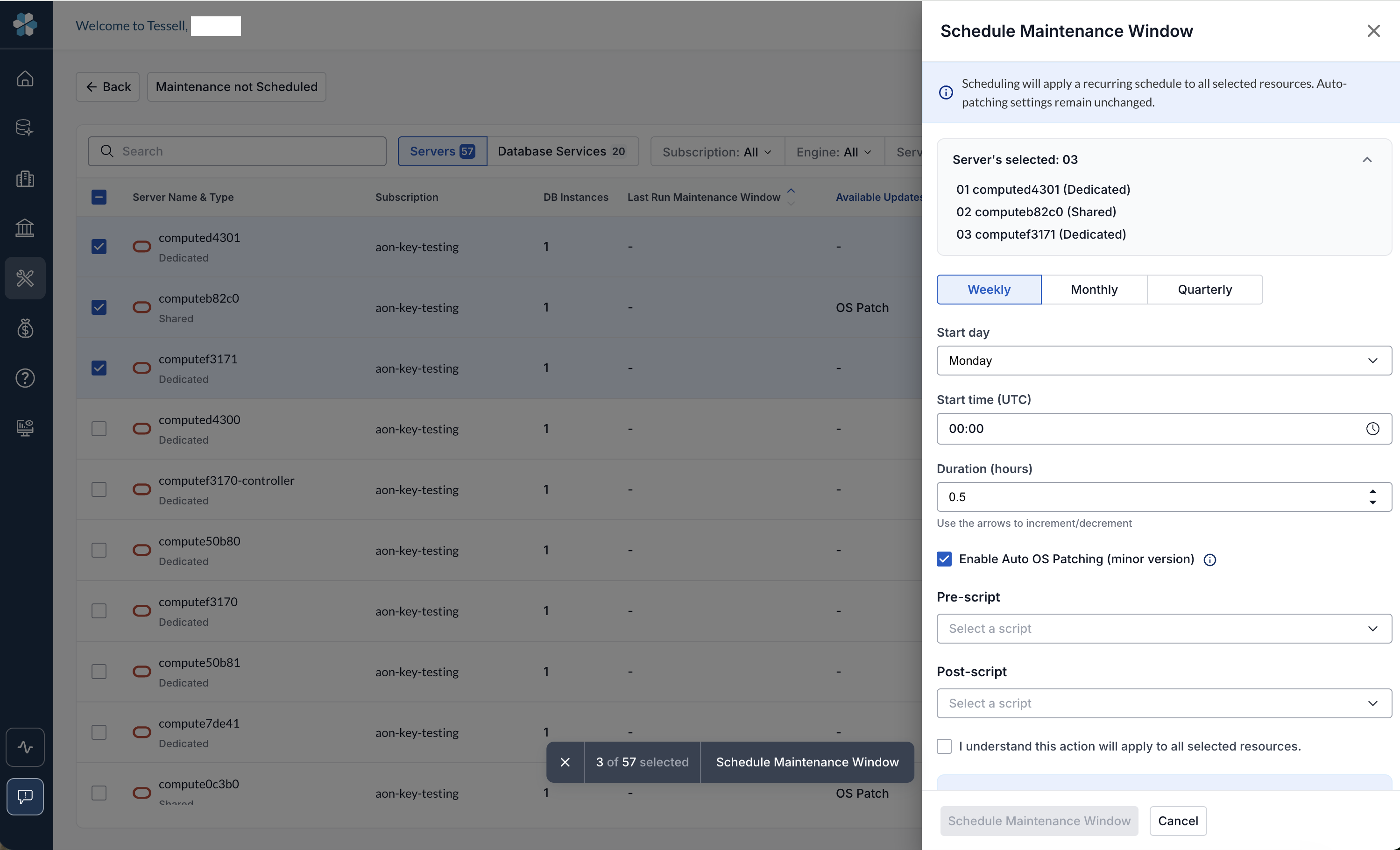
You can schedule Maintenance Windows for multiple servers or services at the same time from the Maintenance not Scheduled page or the main dashboard.
1. Select the check boxes next to the servers or services you want to configure.\
A floating action bar appears at the bottom showing the count of selected items.
2. Select **Schedule Maintenance Window** in the action bar.\
The **Schedule Maintenance Window** panel opens on the right.
3. Review the expandable list of selected items at the top of the panel.
4. Configure the cadence, start day or date, start time, and duration. The available fields are the same as in [Configure a Maintenance Schedule](#configure-a-maintenance-schedule).
5. Configure **Enable Auto OS Patching (minor version)**, **Pre-script**, and **Post-script**.
6. Select the **I understand this action will apply to all selected resources** check box.
7. Select **Schedule Maintenance Window**.
Figure 8 - Schedule Maintenance Window panel (bulk)
---
# Agent Instructions
This documentation is published with GitBook. GitBook is the documentation platform designed so that both humans and AI agents can read, navigate, and reason over technical content effectively. Learn more at gitbook.com.
## Querying This Documentation
If you need additional information that is not directly available in this page, you can query the documentation by asking a question.
Perform an HTTP GET request on the following URL with the `ask` and `goal` query parameters:
```
GET https://docs.tessell.com/tessell/app-families/maintenance-center.md?ask=&goal=
```
`ask` is the immediate question: it should be specific, self-contained, and written in natural language.
`goal` is what the user is ultimately trying to achieve, the reason they need the answer. Sharing it helps GitBook give you a better, more relevant answer. A goal is most helpful when it describes the outcome the user wants rather than restating the question. For example, with `ask=how do I create an API token`, a goal like `automate deployments from our CI pipeline` lets GitBook tailor the answer to that use case.
The response will contain a direct answer to the question and relevant excerpts and sources from the documentation.
Use this mechanism when the answer is not explicitly present in the current page, you need clarification or additional context, or you want to retrieve related documentation sections.