> For the complete documentation index, see [llms.txt](https://docs.tessell.com/tessell/llms.txt). Markdown versions of documentation pages are available by appending `.md` to page URLs; this page is available as [Markdown](https://docs.tessell.com/tessell/database-engines/tessell-for-mysql/db-services/readme-mysql/homepage-mysql/maintenance-mysql.md).
# Maintenance Window
The Maintenance Window tab lets you schedule maintenance activities — such as updates, patches, and OS patching — at a time that avoids your productive hours.
***
## How do I view and manage the maintenance window schedule?
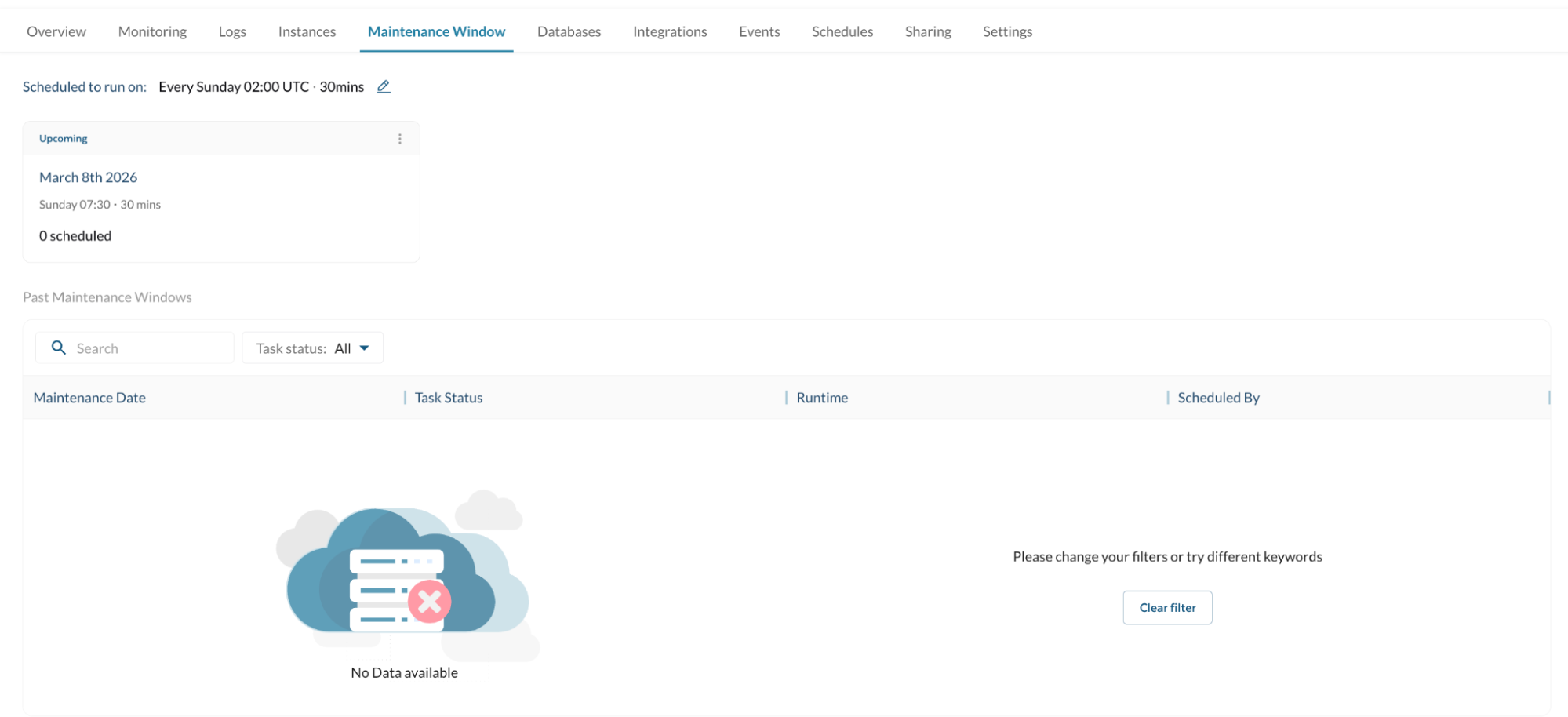
The tab shows two sections:
1. **Upcoming maintenance schedule** — the next scheduled maintenance window and any queued activities.
2. **Past Maintenance Window** — a history of completed maintenance runs.
To change the maintenance window schedule, click the **edit** button next to it. This redirects to the **Settings** tab, where you can set the start day, start time, and duration.
***
## What details appear for upcoming maintenance activities?
Clicking a scheduled maintenance entry shows:
| Field | Description |
| ------------------------ | -------------------------------------------------------------------------------------------------------------------------------------------------------------------------- |
| **Maintenance activity** | The specific task: system actions (patching, OS updates) or user-initiated actions (parameter profile update, compute resize, storage/IOPS resize, switchover/switchback). |
| **Task status** | Current status: SUCCESS, IN\_PROGRESS, QUEUED, FAILED, or ABORTED. |
| **Impact** | Whether the activity causes service downtime and the estimated downtime duration. |
| **Scheduled By** | Whether the activity was initiated by Tessell or by a user. |
A **search bar** and status/scheduled-by filters are available to narrow the list.
### Can I reschedule, start early, or cancel a scheduled maintenance?
Click the ellipsis icon (⋮) on the maintenance schedule entry:
| Action | Behavior |
| -------------- | ---------------------------------------------------------------------------------- |
| **Reschedule** | Opens a confirmation dialog. Enter a new date and time, then click **Confirm**. |
| **Start Now** | Opens a confirmation dialog. Click **Start** to begin the maintenance immediately. |
| **Cancel** | Cancels the scheduled maintenance entry. |
***
## What information is shown for past maintenance runs?
| Column | Description |
| -------------------- | ---------------------------------------------------------------------------------------------------------------------------------------------------------------------------------------------------------------------------------- |
| **Maintenance date** | Date on which the maintenance was performed. |
| **Task status** | Whether the run was skipped or successful, with a count of successful tasks. A run is marked **skipped** if no tasks were scheduled for that window, or if a DB service operation occupied the entire maintenance window duration. |
| **Runtime** | Duration of a successful maintenance run. Skipped or canceled runs show their respective status. |
| **Scheduled By** | Whether the run was initiated by Tessell or by a user. |
Use the **search bar** and **Task status** filter dropdown to find specific past maintenance entries.
Figure 1 — Maintenance Window tab
---
# Agent Instructions
This documentation is published with GitBook. GitBook is the documentation platform designed so that both humans and AI agents can read, navigate, and reason over technical content effectively. Learn more at gitbook.com.
## Querying This Documentation
If you need additional information that is not directly available in this page, you can query the documentation by asking a question.
Perform an HTTP GET request on the following URL with the `ask` and `goal` query parameters:
```
GET https://docs.tessell.com/tessell/database-engines/tessell-for-mysql/db-services/readme-mysql/homepage-mysql/maintenance-mysql.md?ask=&goal=
```
`ask` is the immediate question: it should be specific, self-contained, and written in natural language.
`goal` is what the user is ultimately trying to achieve, the reason they need the answer. Sharing it helps GitBook give you a better, more relevant answer. A goal is most helpful when it describes the outcome the user wants rather than restating the question. For example, with `ask=how do I create an API token`, a goal like `automate deployments from our CI pipeline` lets GitBook tailor the answer to that use case.
The response will contain a direct answer to the question and relevant excerpts and sources from the documentation.
Use this mechanism when the answer is not explicitly present in the current page, you need clarification or additional context, or you want to retrieve related documentation sections.