> For the complete documentation index, see [llms.txt](https://docs.tessell.com/tessell/llms.txt). Markdown versions of documentation pages are available by appending `.md` to page URLs; this page is available as [Markdown](https://docs.tessell.com/tessell/database-engines/tessell-for-postgresql/db-services/readme-postgresql/homepage-postgresql/monitoring-postgresql.md).
# Monitoring
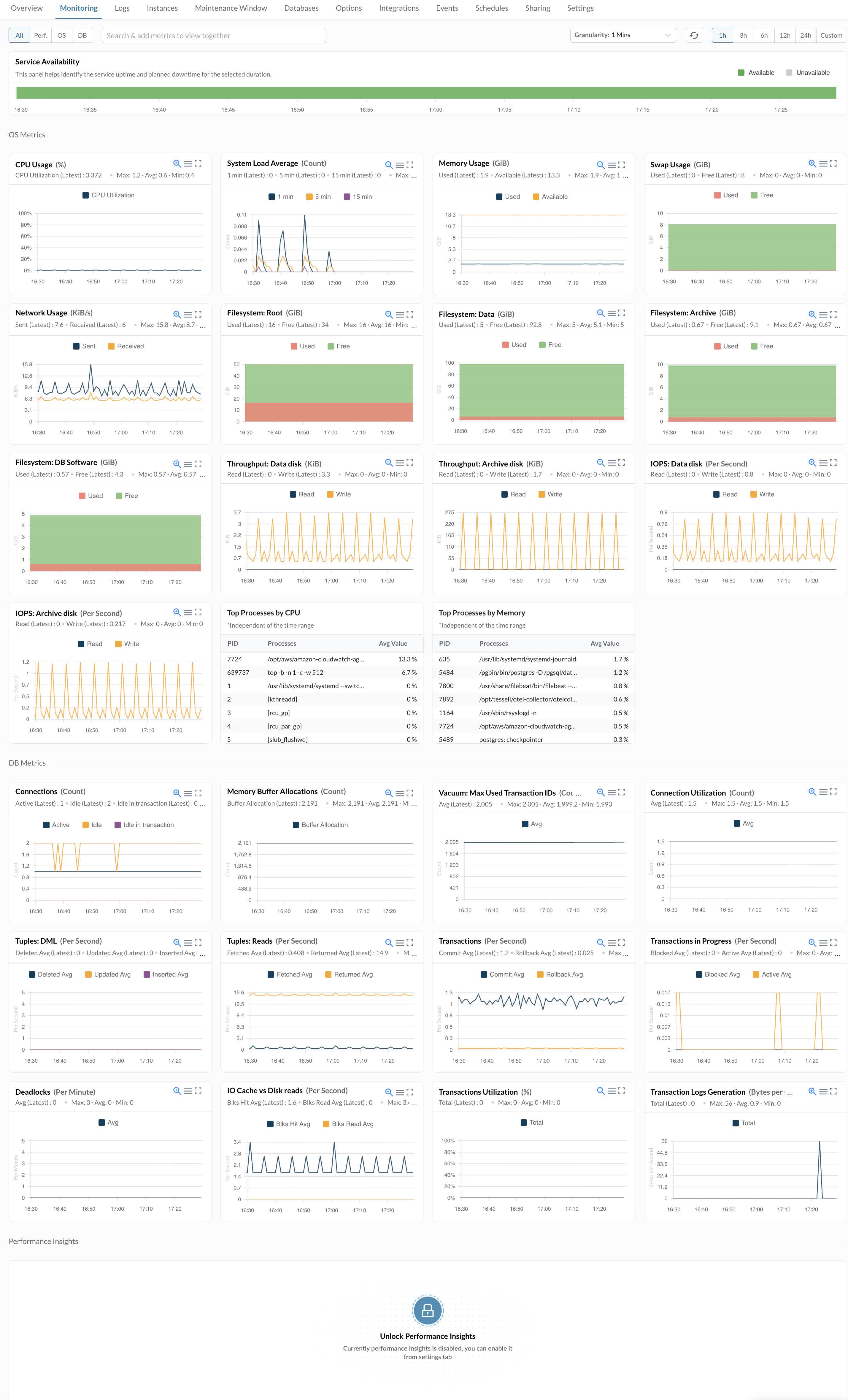
The Monitoring tab provides real-time and historical observability for your PostgreSQL database service. Metrics are grouped into **OS Metrics**, **DB Metrics**, and **Performance Insights**. By default, graphs show metrics for the current primary node; for HA/RR/DR services you can select a specific node.
***
## What time range and granularity options are available?
**Preset intervals:** 1h, 3h, 6h, 12h, 24h (default: 1h). Graphs display averaged values over the selected period.
**Custom range:**
1. Select **Custom**.
2. Choose the desired start date and time.
3. Click **Apply**.
**Granularity** controls the interval between data points. A finer granularity (e.g., 1 minute) shows more detail; a coarser granularity (e.g., 1 hour) gives a higher-level view over longer ranges. Options: 1m, 5m, 15m, 30m, 1h, 6h, 12h, 1d. By default, Tessell auto-calculates granularity to return approximately 121 data points per chart. The minimum granularity is 1 minute (the metric collection interval); a maximum of 1,441 data points are returned per query. If the requested granularity exceeds the selected time range, Tessell adjusts the start time accordingly.
***
## What interactive features are available on each monitoring chart?
| Feature | How to use |
| -------------------- | --------------------------------------------------------------------------------------------------------------------------------------------- |
| **Full-screen view** | Click the full-screen icon (top-right of graph) to open an expanded view with 1m/5m/15m/30m/1h granularity options and Avg/Min/Max statistics |
| **Zoom** | Click and drag over a section of the graph to zoom in for granular analysis |
| **Drag and explore** | Use the crosshair cursor to pan across a portion of the graph |
| **Download** | Click the menu icon (top-right) → choose **SVG/PNG** for an image or **CSV** for tabular data (e.g., for analysis in Excel) |
Use the **refresh button** (top-right of the Monitoring tab) to manually refresh all metrics. Use the **search bar** to locate a specific metric chart by name.
***
## What does the Service Availability graph show?
The Service Availability graph displays database service uptime, with green indicating availability and gray representing unavailability.
> **Note:** OS and DB metrics are retained for a period of 20 days.
***
## What OS metrics does the Monitoring tab provide?
The OS Metrics section graphs the following operating system metrics (default interval: 10 minutes unless noted):
| Metric | What it shows |
| ----------------------------------- | ------------------------------------------------------------------------------------------------------------------------------------------------------------------------------------------- |
| **CPU Usage (%)** | CPU utilisation as a percentage. Shows the latest, maximum, and average values. |
| **System Load Average (Count)** | Linux system load average over three fixed OS-level rolling windows — 1m, 5m, and 15m (three lines on the same graph), computed by the Linux kernel independent of the granularity setting. |
| **Memory Usage (GiB)** | Used and available memory in GiB (two lines). |
| **Swap Usage (GiB)** | Used and free swap space in GiB (two lines). |
| **Network Usage (KiB/s)** | Sent and received network data in KiB/s (two lines). |
| **Filesystem: Root (GiB)** | Used and free root filesystem space. |
| **Filesystem: Data (GiB)** | Used and free space on the volume where database data files are stored. |
| **Filesystem: Archive (GiB)** | Used and free space on the volume where archive files are stored. |
| **Filesystem: DB Software (GiB)** | Used and free space on the volume where database software binaries are installed. |
| **Throughput: Data disk (KiB)** | Read and write throughput on the data disk (two lines). |
| **Throughput: Archive disk (KiB)** | Read and write throughput on the archive disk (two lines). |
| **IOPS: Data disk (Per Second)** | Read and write IOPS on the data disk (two lines). |
| **IOPS: Archive disk (Per Second)** | Read and write IOPS on the archive disk (two lines). |
| **Latency: Data disk** | Read and write latency on the data volume, in seconds (two lines). |
| **Latency: Archive disk** | Read and write latency on the archive volume, in seconds (two lines). |
| **Queue Depth: Data disk** | In-flight I/O operations on the data volume. A consistently high queue depth indicates I/O bottlenecks. |
| **Queue Depth: Archive disk** | In-flight I/O operations on the archive volume. A consistently high queue depth indicates I/O bottlenecks. |
| **Top Processes by CPU** | Table: PID, process name, average CPU % (current data only, not historical). |
| **Top Processes by Memory** | Table: PID, process name, average memory % (current data only, not historical). |
***
## What PostgreSQL DB metrics does the Monitoring tab provide?
The DB Metrics section graphs the following PostgreSQL-specific metrics:
| Metric | What it shows |
| -------------------------------------------------- | ------------------------------------------------------------------------------------------------------------------- |
| **Connections (Count)** | Count of active, idle, and idle-in-transaction client connections (three lines). |
| **Memory Buffer Allocations (Count)** | Buffer allocations in the PostgreSQL shared buffer pool. Shows latest, maximum, and minimum values. |
| **Vacuum: Max Used Transaction IDs (Count)** | Average number of transaction IDs consumed — tracks vacuuming activity and helps prevent transaction ID wraparound. |
| **Connection Utilization (Count)** | Average connections in use relative to the configured maximum connections limit. |
| **Tuples: DML (Per Second)** | Average rows deleted, updated, and inserted per second (three lines). |
| **Tuples: Reads (Per Second)** | Average rows fetched and returned per second (two lines). |
| **Transactions (Per Second)** | Average committed and rolled-back transactions per second (two lines). |
| **Transactions in Progress (Per Second)** | Count of blocked and active transactions per second (two lines). |
| **Deadlocks (Per Minute)** | Average number of deadlocks per minute. |
| **IO Cache vs Disk reads (Per Second)** | Blocks hit in the buffer cache versus blocks read from disk per second (two lines). |
| **Transactions Utilization (%)** | Total transaction utilisation as a percentage of the maximum allowed transactions. |
| **Oldest Replication Slot Lag (Bytes)** | Lag in bytes for the oldest replication slot — helps monitor replication health and detect slot accumulation. |
| **Transaction Logs Generation (Bytes per second)** | Rate of WAL (Write-Ahead Log) generation in bytes per second. |
***
## How does Performance Insights work and how do I enable it?
Performance Insights is a database load analysis tool that identifies bottlenecks by measuring the **Average Active Sessions (AAS)** — the average number of sessions concurrently active on the database.
**Prerequisites:** Create a **Monitoring Performance Insights Infrastructure** in the **Monitoring Performance Insights Infrastructure** application under the **DB Services** app family. After the infrastructure is deployed, enable Performance Insights per service either at provisioning time or from the Settings tab.
**Key concepts:**
| Concept | Description |
| -------------------------- | ------------------------------------------------------------------------------------------- |
| **Database Load / DBLoad** | The key metric — collected every second and expressed as AAS |
| **Active session** | A connection that has submitted work and is either running on CPU or waiting for a resource |
| **AAS** | Total sessions sampled divided by number of samples in the time period |
For each active session, Performance Insights collects: session state (Wait — running on CPU or waiting), the SQL statement, the host, the user running the SQL, and the database the SQL is running on.
**Top Dimensions** — dimensions of database load within a timeframe:
| Dimension | Description |
| ----------------- | ---------------------------------------------------------------- |
| **Top Waits** | Wait events contributing most to DB load |
| **Top SQLs** | Top SQL queries by DB load (masked and grouped by type) |
| **Top Hosts** | Client hosts contributing most to DB load |
| **Top Users** | Database users contributing most to DB load |
| **Top Databases** | Databases contributing most to DB load (multi-database services) |
### Steps to view Performance Insights
1. Click **View Detailed Insights** on the Monitoring tab (graph shown at a 5-minute interval).
2. Select a time interval: 1h, 3h, 6h, 12h, or 24h (default: 1h).
3. For a custom range, select **Custom**, choose a date and time, and click **Apply**.
Figure 1 — Monitoring tab
---
# Agent Instructions
This documentation is published with GitBook. GitBook is the documentation platform designed so that both humans and AI agents can read, navigate, and reason over technical content effectively. Learn more at gitbook.com.
## Querying This Documentation
If you need additional information that is not directly available in this page, you can query the documentation by asking a question.
Perform an HTTP GET request on the following URL with the `ask` and `goal` query parameters:
```
GET https://docs.tessell.com/tessell/database-engines/tessell-for-postgresql/db-services/readme-postgresql/homepage-postgresql/monitoring-postgresql.md?ask=&goal=
```
`ask` is the immediate question: it should be specific, self-contained, and written in natural language.
`goal` is what the user is ultimately trying to achieve, the reason they need the answer. Sharing it helps GitBook give you a better, more relevant answer. A goal is most helpful when it describes the outcome the user wants rather than restating the question. For example, with `ask=how do I create an API token`, a goal like `automate deployments from our CI pipeline` lets GitBook tailor the answer to that use case.
The response will contain a direct answer to the question and relevant excerpts and sources from the documentation.
Use this mechanism when the answer is not explicitly present in the current page, you need clarification or additional context, or you want to retrieve related documentation sections.