> For the complete documentation index, see [llms.txt](https://docs.tessell.com/tessell/llms.txt). Markdown versions of documentation pages are available by appending `.md` to page URLs; this page is available as [Markdown](https://docs.tessell.com/tessell/database-engines/tessell-for-postgresql/db-services/script-library-postgresql.md).
# Script Library
The Script Library is the central store for uploading and managing the scripts used across Tessell DB services — masking scripts for sanitization, and pre/post-scripts for clones, refreshes, and backups. Scripts are versioned, engine-specific, and reusable across multiple database services.
***
## Prerequisites
* Ensure that you have registered your cloud subscription in the **Subscriptions** application under the **Governance** app family. See [Subscriptions](/tessell/app-families/governance/subscriptions.md).
* Ensure that you have prepared your PostgreSQL-compatible script file (`.sql` or `.sh`).
***
## What types of scripts does the Script Library support?
| Script type | Supported file types | Typical use |
| --------------- | -------------------- | --------------------------------------------------------------------------------------------------------------------------------- |
| **Masking** | `.sql` | Mask or anonymise sensitive columns (PII, card numbers, etc.) before creating sanitized snapshots in the Availability Machine app |
| **Pre-script** | `.sql`, `.sh` | Prepare the environment before a backup, refresh, migration, or deployment |
| **Post-script** | `.sql`, `.sh` | Restore or reconfigure the environment after a backup, refresh, migration, or deployment |
Scripts are not limited to a single DB service — once uploaded, a script can be used across multiple services and applications (such as the Availability Machine app). A script created by one Data Owner is not visible to others unless explicitly shared.
> **File constraints:** Each script upload is a single file with a maximum size of 1 MiB.
***
## What does the Script Library dashboard show?
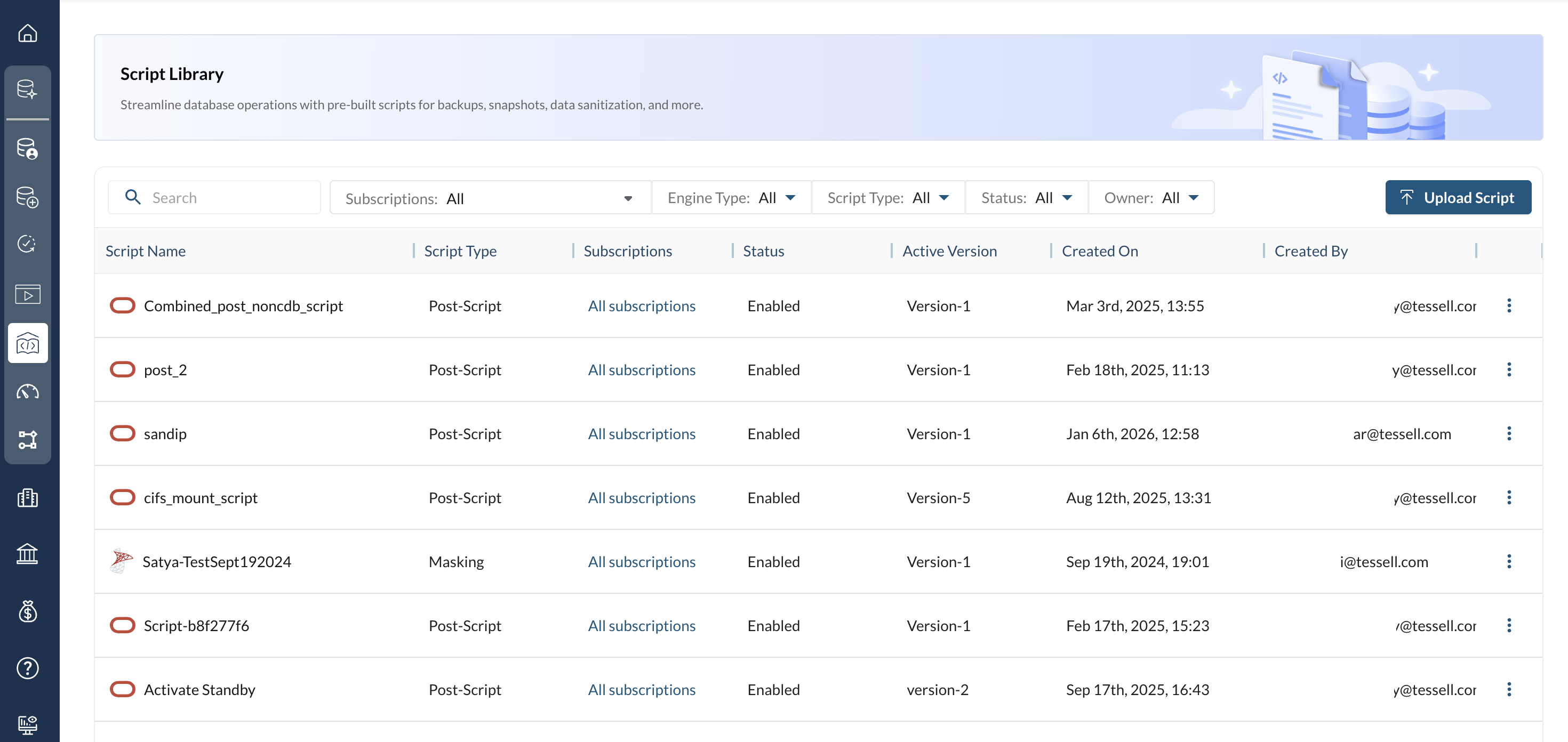
Navigate to **DB Services → Script Library** to view the dashboard. It lists all scripts you have access to.
### Dashboard filters
| Filter | Behaviour |
| ----------------- | --------------------------------------------- |
| **Search** | Filter by script name (filters as you type) |
| **Subscriptions** | All, or a specific cloud subscription |
| **Engine** | All, MySQL, Oracle, PostgreSQL, or SQL Server |
| **Script Type** | All, Masking, Pre-Script, or Post-Script |
| **Status** | All or Enabled |
| **Owner** | Filter by username or All |
| **Clear** | Reset all filters to defaults |
### Dashboard columns
| Column | Description |
| ------------------ | -------------------------------------------------------------------------------------------------------- |
| **Script Name** | Name of the script. Hover to see the description tooltip. |
| **Script Type** | Masking, Pre-Script, or Post-Script |
| **Subscriptions** | Cloud subscriptions the script is available in. Account owners see all scripts across all subscriptions. |
| **Status** | Scripts have **Enabled** status by default. |
| **Active Version** | The version currently set as active |
| **Created On** | Date and time the script was first uploaded |
| **Created By** | Username that uploaded the script |
| **Ellipsis icon** | **Update** or **Delete** the script (see below) |
Figure 1 — Script Library dashboard
***
## How do I upload a script?
1. Click **Upload Script** (top right of the dashboard).
2. Enter a **Name** for the script.
3. Optionally, enter a **Description**.
4. Choose **PostgreSQL** from the engine list.
5. Choose a **Script Type**: Masking, Pre-Script, or Post-Script.
6. Click **Select File** and choose your script file from your local folder (single file only, maximum 1 MiB).
7. Choose one or more **Subscriptions** from the dropdown.
8. Click **Save**.
Use the **Code** button (top right of the dialog) to generate API calls in Shell, Python, Go, Java, JavaScript, or PowerShell.
***
## How do I update or delete a script?
Click the **ellipsis icon** on a script row:
**Update** — opens the edit dialog. You can modify:
* Script name and description
* Active version (select from the dropdown)
* Subscriptions (add or remove)
> **Subscription removal rule:** You can remove a subscription directly only if the script is not currently used in any schedule, service, or clone on that subscription. If it is in use, remove it from all associated schedules, services, or clones first.
**Delete** — permanently removes the script. A confirmation dialog appears; select the checkbox to confirm, then click **Delete**.
***
## What does the Script Library home page show?
Click any script name on the dashboard to open its home page. It has two tabs: **Versions** and **Sharing**.
Figure 2 — Script Library home page
***
## How do I manage script versions?
The **Versions** tab lists all uploaded versions of the script. Use the **Search** bar to find a specific version.
### Versions table columns
| Column | Description |
| ----------------- | -------------------------------------- |
| **Name** | Version name |
| **Version** | Version number |
| **File Name** | Script filename and extension |
| **Created On** | Date and time the version was uploaded |
| **Ellipsis icon** | **Download** or **Delete** the version |
### How do I upload a new version?
1. Click **Upload new version**.
2. Enter a **Name** for the version.
3. Optionally, enter a **Description**.
4. Click **Select File** and choose the script file (max 1 MiB).
5. Click **Save**.
### How do I delete a version?
Click the ellipsis icon on the version row → **Delete** → check the confirmation checkbox → **Delete**.
> **Note:** You cannot delete the currently active version. Set a different version as active first, then delete the old one.
***
## How do I share a script?
The **Sharing** tab lists all users the script is shared with and their roles. A Data Owner can only see scripts created by them or shared with them. A Data Owner with admin access to the DB Services app can see scripts associated with all subscriptions they can access.
### How do I add users?
1. Click **Share** (top right of the Sharing tab).
2. From the **Role** dropdown, choose **Co-owner** or **Read-only**.
3. Use the **Search** bar to find users.
4. Move users from the **Choices** column to the **Chosen** column to grant access.
> All personas except Account Owners without DB Admin access appear in the Choices column. Manage users and roles in the [IAM application](/tessell/app-families/governance/iam.md) under Governance.
5. Click **Save**.
### Sharing table columns
| Column | Description |
| -------- | ---------------------------------------------- |
| **User** | Username of the user the script is shared with |
| **Role** | Co-owner or Read-only |
---
# Agent Instructions
This documentation is published with GitBook. GitBook is the documentation platform designed so that both humans and AI agents can read, navigate, and reason over technical content effectively. Learn more at gitbook.com.
## Querying This Documentation
If you need additional information that is not directly available in this page, you can query the documentation by asking a question.
Perform an HTTP GET request on the following URL with the `ask` and `goal` query parameters:
```
GET https://docs.tessell.com/tessell/database-engines/tessell-for-postgresql/db-services/script-library-postgresql.md?ask=&goal=
```
`ask` is the immediate question: it should be specific, self-contained, and written in natural language.
`goal` is what the user is ultimately trying to achieve, the reason they need the answer. Sharing it helps GitBook give you a better, more relevant answer. A goal is most helpful when it describes the outcome the user wants rather than restating the question. For example, with `ask=how do I create an API token`, a goal like `automate deployments from our CI pipeline` lets GitBook tailor the answer to that use case.
The response will contain a direct answer to the question and relevant excerpts and sources from the documentation.
Use this mechanism when the answer is not explicitly present in the current page, you need clarification or additional context, or you want to retrieve related documentation sections.